A BETTER WAY TO STAY CONNECTED

TO YOUR PHARMACY

Perigon Pharmacy 360 is adopting Medesto Pulse, a HIPAA-compliant patient communication platform that makes it easier to manage your health and stay connected with your care team. No paper forms, no printing, nothing to mail back.

Welcome to

Medesto Pulse
Image

What Pulse Does for You

Refill Reminders

Timely notifications when it’s time to refill so you never unexpectedly run out.

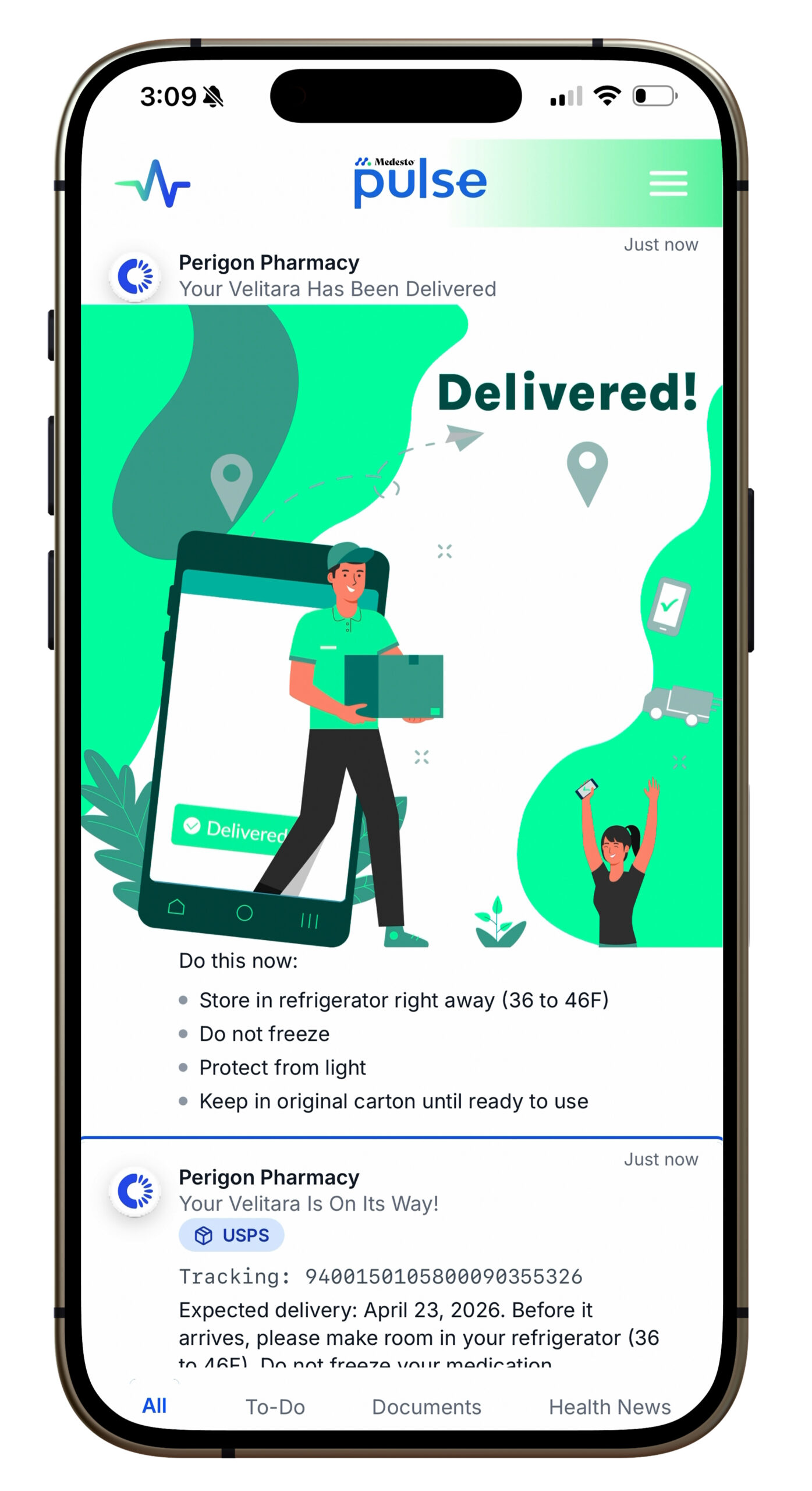
Delivery Tracker

Know exactly when your prescription is on the way.

Health Support

Receive clear information about your therapy: what to expect, how to take it, and what to watch for.

Health Check-ins

Your care team may send short check-ins asking how you’re feeling on your medication. These help your pharmacist catch issues early and adjust your care before problems escalate.

Digital Forms & Consents

Sign required documents, including consent forms and HIPAA authorizations, directly in Pulse on your device. No paper, no printing, nothing to mail back. Signed documents are automatically filed to your pharmacy record.

Direct Access to Your Care Team

Message your pharmacist or care coordinator directly through Pulse instead of calling and waiting on hold. Your pharmacist can also reach you by video call through the app.

How to Get Started

Step 1: Watch for a text message

Shortly before launch, you will receive an RCS text message from Medesto with a link to register for Pulse. RCS is a modern messaging format supported by most Android and iPhone devices. It will arrive in your regular text messaging app.

Step 2: Tap the link and confirm your identity

Tapping the link will take you to a secure registration page. You will confirm a few basic details so we can verify it’s you. This takes less than a minute.

Step 3: Create your passkey

You will be prompted to create a passkey. A passkey is a simple, secure way to log in. Instead of typing a password, you use your face, fingerprint, or device PIN (whateveryou already use to unlock your phone). Your passkey is stored on your device, so only you can use it.

Step 3: Create your passkey

You will be prompted to create a passkey. A passkey is a simple, secure way to log in. Instead of typing a password, you use your face, fingerprint, or device PIN (whateveryou already use to unlock your phone). Your passkey is stored on your device, so only you can use it.

On iPhone (Safari):

  • 1. Open the registration link in Safari
  • 2. Tap the Share button at the bottom of the screen (the box with an arrow pointing up)
  • 3. Scroll down and tap “Add to Home Screen”
  • 4. Tap “Add” and Pulse will appear on your home screen like any other app

On Android (Chrome):

  • 1. Open the registration link in Chrome
  • 2. Tap the three-dot menu in the top right corner
  • 3. Tap “Add to Home screen”
  • 4. Tap “Add” and Pulse will appear on your home screen

Frequently Asked 

Questions